
To access all of their SLOs, the teacher must log into TEAMS and then click on "SLO Management" in the main menu. A page similar to the one below will appear.
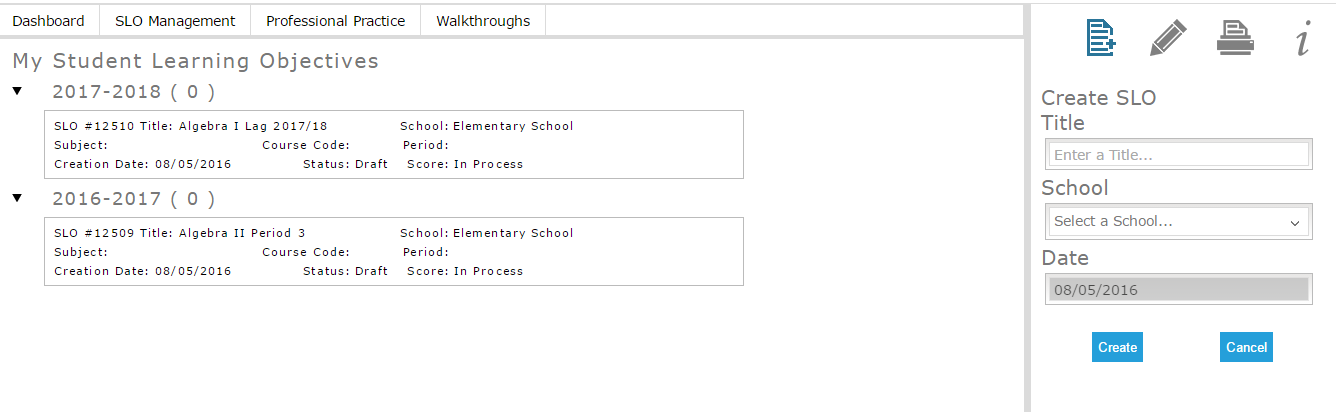 Figure 4
Existing SLOs appear as blocks listed beneath the year they are associated to, as shown above in Figure 4. The SLO blocks will list the SLO title, status, and if an SLO score exists then it will also display in the block (shown below).

Figure 5
To select an SLO, the teacher must click on the SLO they wish to view or edit. The block will turn blue as shown below.

Figure 6
After the SLO is selected the teacher can click on the pencil located in the right side pane to open the SLO (shown below).
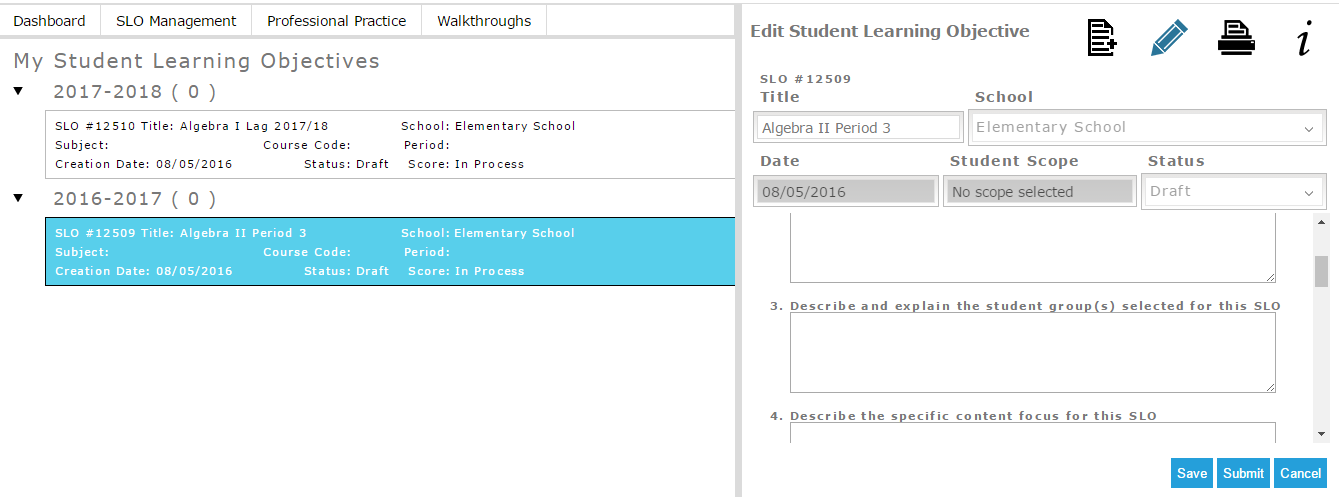
Figure 7
The fields will be enabled if the SLO is in Draft or Review status, and was created during the current school year. The teacher may only view the SLO if the SLO is in the status Submitted or Completed, or if it is an SLO that is from a past school year.
The teacher can then scroll down the right side pane to fill in the fields on their SLO. Further details on filling in the SLO scope fields are in the sub-sections below.
Comments
0 comments
Article is closed for comments.