
To create a new SLO, the teacher must log into TEAMS and then click on the SLO Management tab in the main menu. The page will appear with a pane on the right side, as shown below. This is the pane used to create or edit SLOs.
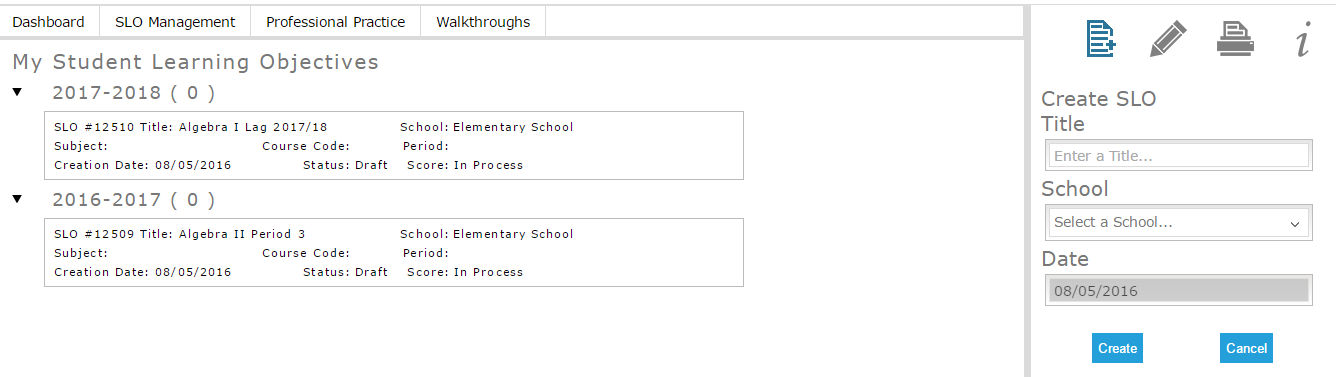
Figure 1
The SLO can be created using the right side pane. Enter a name, select a school, and then click Create to create the SLO (shown below).
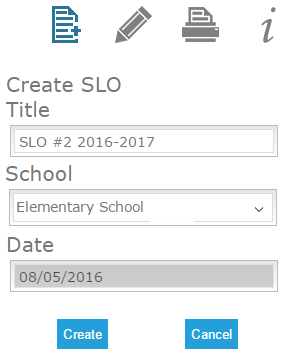
Figure 2
Once the SLO is created, the fields will appear on the right side of the page as shown below. The teacher can scroll down the right side of the page to fill in the fields, and click Save to save their SLO at any time.
Please remember to click the "Save" button (shown below) each time you adjust your SLO. The system will not save the value unless you click Save after making a change to the SLO.
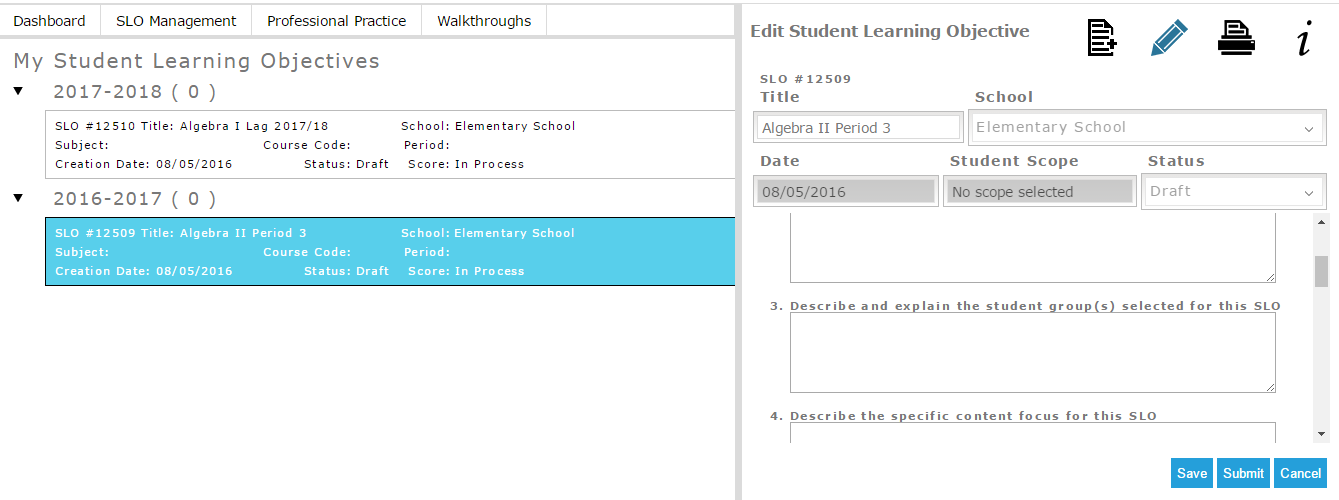
Figure 3
Comments
0 comments
Article is closed for comments.