
The scope fields are located at the bottom of the teacher SLO, as shown below. These fields allow the teacher to select a specific group of students and assign a specific goal statement for them.
Please remember to click the "Save" button (shown below) each time you adjust your SLO Scope fields. The system will not save the value unless you click Save after making a change to the SLO scope.

Figure 8
The sections below will explain how to fill in the student scope, and will provide further details on acceptable scope entries.
Teacher SLO Scope Types
Part of the SLO scope includes defining the scores that the teacher aims to maintain, achieve, or improve by for the students in their scope. The SLO will display different statements based on the "Type" that the teacher selects, this is depicted below.

Figure 9

Figure 10
Please note that if the teacher selects Median of for the type, then the metric automatically defaults to Pre-Post Tests and cannot be changed.
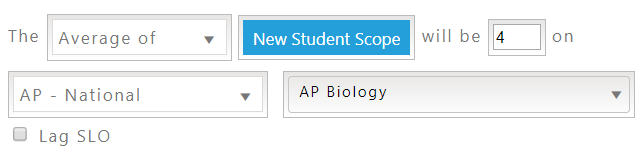
Figure 11
Creating a Student Scope
Teachers can define and save a custom student scope for their SLO by scrolling to the bottom of the form, selecting a scope type in the drop list labeled ‘Select Type…’, and then clicking on the ‘New Student Scope’ button (as shown below).

Figure 12
The teacher will then see the scope selection window open on the screen (shown below in Figure 13). The scope selection window consists of a field for the scope name, the current logged in teacher’s classes, a sub-group filter, and a search field followed by a list of all students in the teacher’s classes at their school.

Figure 13
Teachers may scroll through the list of student names and select the checkboxes in the first column to add selected students to their custom SLO scope. They may also use the text field above the student list to search for students by student ID or name (case sensitive).
The default order of the list is by the first column, student ID, but teachers may simply click on the triangle icons in the column headers to sort by last name or first name (shown below in Figure 14).

Figure 14
Once the teacher is finished defining their student scope, they can click the ‘Save’ button in the lower portion of the scope window to save the new student scope. The teacher must select at least one student name in order to save their student scope definition.
Using the Class and Subgroup Drop Lists
Teachers can use the drop list labeled ‘Class’ to automatically select students from one of their assigned classrooms. They can also use the ‘Sub-Group’ drop list to automatically select all students belonging to a specific sub-group. The teacher must enter a scope name, select the class or sub-group they wish to choose for this scope, and click the ‘Save’ button at the bottom of the scope window.
If the teacher has no individual classroom assignments, they may be given school-wide access, which gives them a list of all students within their respective schools. Each SLO is created per-school, so teachers may only select students from one school at a time. In order to give a teacher school-wide access, please have an administrator contact support@teams-hub.com.
Lag SLOs
If the Metric for the SLO is AP National, HSA Biology, HSA Government, or MSA Science then the teacher can mark the SLO as a Lag SLO. SLOs can be marked as 'Lag' by selecting the desired Metric and then checking off the 'Lag' checkbox in the SLO Scope section, as shown below in Figure 15:
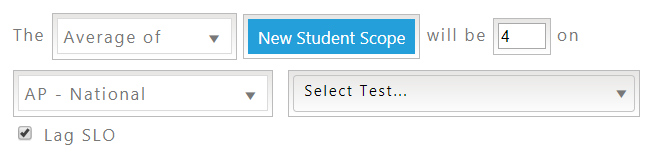
Figure 15
After selecting the Lag SLO checkbox, a pop-up will appear asking the teacher to confirm that they want to set the SLO to Lag. The teacher can click Yes and then Save to save the lag SLO.
If an SLO is marked as Lag, it will not be scored during the current school session. Instead it will be scored during the following school session. Teachers will be able to see the Lag SLO on their respective SLO Management pages. The teacher will see the Lag SLO shown beneath the following school year, as depicted in Figure 16 below:
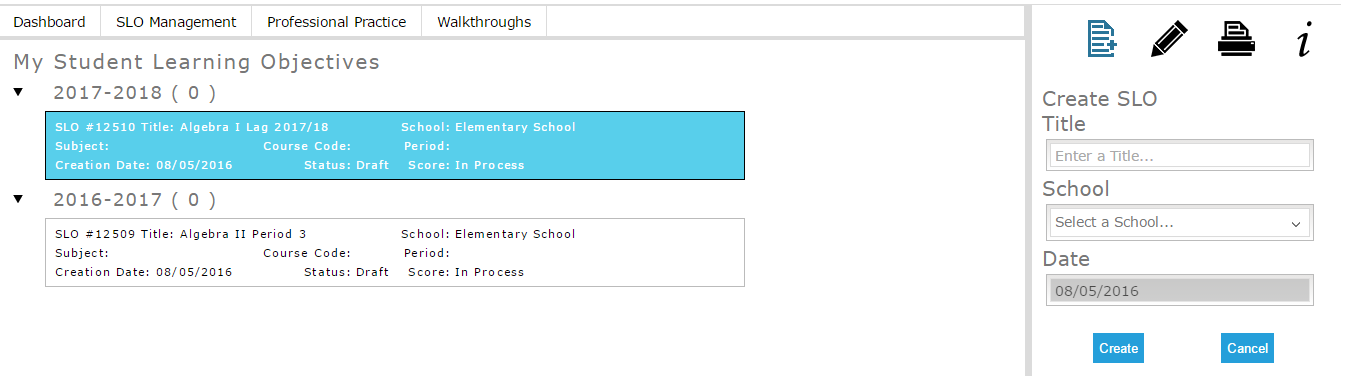
Figure 16
The (#) indicators at the top of the SLO lists will show the teacher how many SLOs they have that are NOT in Draft status for that year. This helps the teacher see which SLOs they worked with during that year. In Figure 16, both of the SLOs are in Draft status and therefore have not been counted for either year.
Metric Selection
A metric must be selected in order to submit the SLO. The teacher may select a metric by scrolling down to the SLO Scope fields and selecting a type.

Figure 17
Once the teacher chooses a metric, all tests available for that metric will display in the test droplist. As shown in Figure 17, the following metrics are available:
- AP - CCPS
- AP - National
- HSA Biology
- HSA Government
- MISA Science
- Pre-Post Tests
- SAT
- Other...
The "Other" option allows the teacher to define their own metric. If the teacher selects Other for the metric then they must enter a name for the metric of their choice into the field that appears below, as shown in Figure 18.

Figure 18
Test Selection
The SLO scope includes a field for test selection, as shown below. The teacher may select a test by scrolling down to the SLO Scope fields and selecting a type, and then a metric. When the teacher chooses a metric, the test list will display all tests available for that metric.
Teachers can click on the checkboxes to select one or more tests, as depicted in Figure 19.
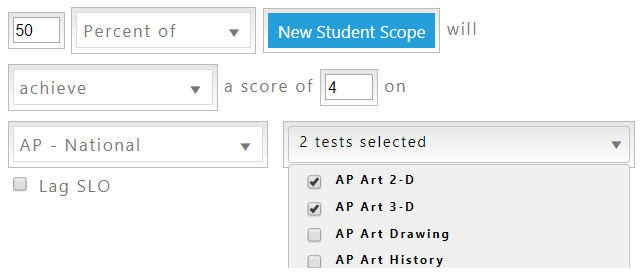
Figure 19
The teacher must select a metric and test in order to submit their SLO.
Acceptable Score Ranges
Only CCPS teacher SLOs will be validated against the acceptable score ranges listed below.
When the teacher clicks Submit, the SLO will be validated to make sure that the score range entered is acceptable for the selected metric and/or tests. The fields that are impacted by this are any field where the teacher enters a score projection, such as 'Improve from X to Y', or 'Achieve a score of X'. The scores the teacher enters must be within the acceptable score range. Please see below for details of all acceptable score ranges for each metric or test.
| Metric Name | Acceptable Score Range |
| AP - CCPS | 1 - 100 |
| AP - National | 1 - 5 |
| HSA Biology | 240 - 650 |
| HSA Government | 240 - 650 |
| MISA Science | 240 - 650 |
| SAT | 200 - 2400 (to account for multiple subject areas) |
| Pre-Post Tests (0 - 100 scoring scale) |
The following Pre-Post tests are scored on a scale of 0 – 100, and as such the acceptable score range for the SLO is 0 – 100:
|
| Pre-Post Tests (25 - 125 scoring scale) |
The following Pre-Post tests are scored on a scale of 25 – 125, and as such the acceptable score range for the SLO is 25 – 125:
|
Comments
0 comments
Article is closed for comments.