
Create or Delete Badges
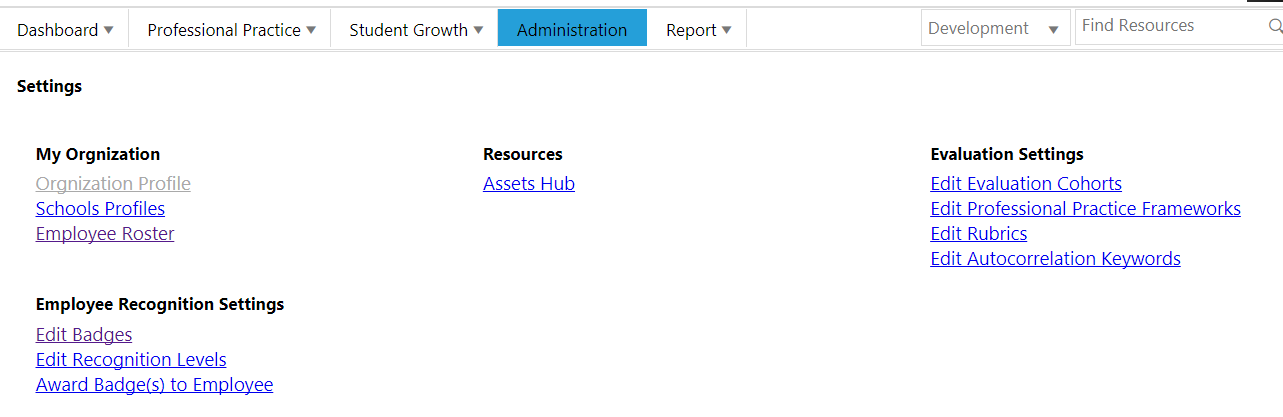
District administrators can create a new badge by logging into TEAMS and clicking the 'Administration' main menu item. The Administration page will display as shown below. Click the 'Edit Badges' link under the Employee Recognition Settings title.
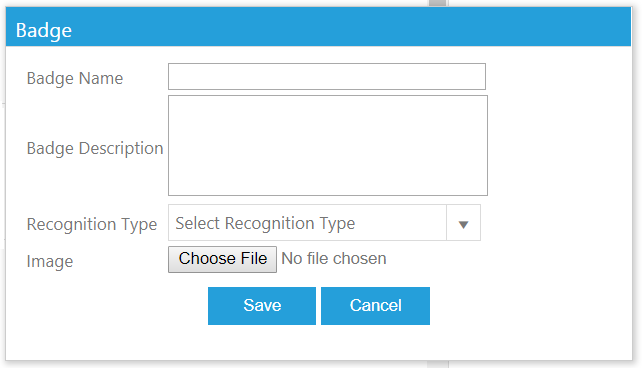
To create a new badge, click the Add New button at the top of the page and fill out the fields. Click Save to save the badge.
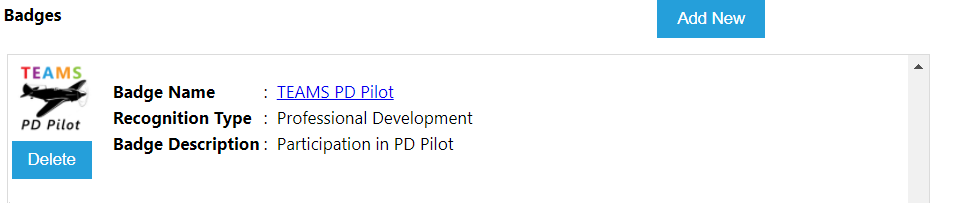
The badge will display on the page as shown below.
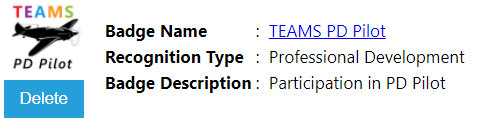
To delete an existing badge, go to the badge administration page and locate the badge you'd like to delete. Click the Delete button beneath the badge, as shown below. The badge will immediately be deleted.
Assign Badges
To award a badge, log into TEAMS and click on the 'Administration' main menu item. Click the "Award Badge(s) to Employee" link under the Employee Recognition Settings title.
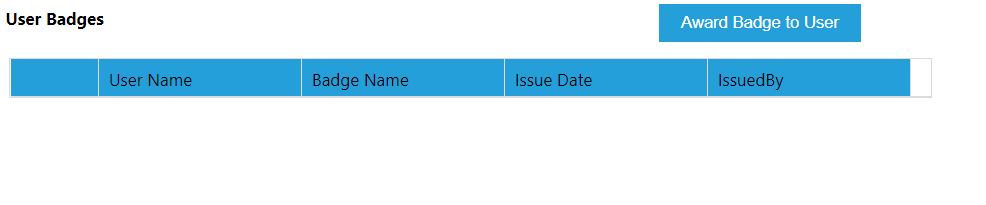
The page will display below. Click the 'Award Badge to User' button at the top of the page.
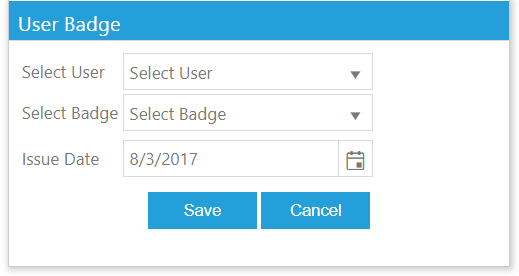
After clicking the Award Badge to User button, the User Badges window will appear as shown below. Use the droplists to select the individual's name, badge, and select an issue date. Click Save to save the badge assignment.
After the badge assignment is saved it will display on the page as shown below.

Edit or Delete Badges Awarded to Users
To edit or delete a badge that has been awarded to a user, log into TEAMS and click on the 'Administration' main menu item. Click the "Award Badge(s) to Employee" link under the Employee Recognition Settings title.
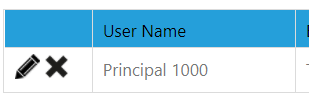
All users who have badges awarded to them will display on the page. To edit the issue date or type of badge awarded to the user, click the pencil icon and adjust the fields as needed before clicking Save. To delete the badge from the user's record, click the X icon.
Comments
0 comments
Article is closed for comments.