
View Resource Assignments
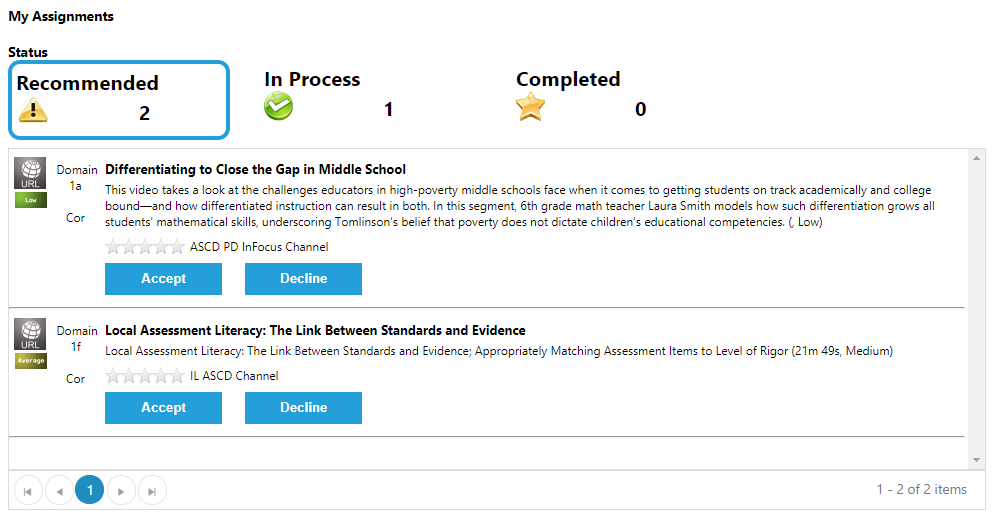
You will receive an email when a resource has been assigned to you. To view all resource assignments, log into the Evals Hub and hover your cursor over the "Professional Practice" main menu item, and then click the "My Assignments" submenu item. The My Assignments page will display as shown below.
Accept or Decline an Assignment
You must accept or decline the assignment before you can begin working on it in TEAMS. To accept an assignment, log into TEAMS and go to the My Assignments page. Locate the resource you want to accept, and click the Accept button. The resource will now display under the "In Process" tab and you will be able to click Start to start the resource that was accepted. The individual who assigned the resource will receive an email notifying them that the resource was accepted.
To decline an assignment, go to the My Assignments page and locate the resource. Click the "Decline" button in the same block as the resource you would like to decline. The individual who assigned the resource will receive an email notifying them that the resource was declined.
Start Working on an Assignment
TEAMS allows you to mark a resource as "In Process", which means you have begun working on the assignment. To indicate that you have begun working on the assignment, locate the resource that you accepted and click the Start button.
Resume an Assignment
A resource can be resumed after it has been started. Resuming a resource means you are re-opening the resource. To resume a resource, locate it under the In Process list and click the "Resume" button.
Remove an Assignment
A resource can be removed after it has been started. When the resource is removed by the assignee, the individual who assigned the resource will receive an email notifying them that the resource was removed. To remove a resource, locate it under the In Process list and click the "Remove" button.
Complete an Assignment
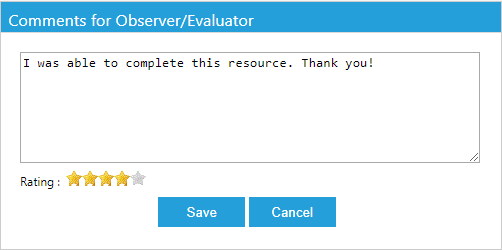
After starting work on a resource, you may set it to "Complete" status. The individual who assigned the resource will receiving an email notifying them that the resource assignment was completed. To complete a resource assignment, locate it under the In Process list and click the "Complete" button. You will be prompted to enter a comment and a rating for the resource, as shown below.
Assignment Statuses
There are three assignment statuses. Click on the desired tab to view each assignment under its respective status:
- Recommended: This tab lists assignments that have not been started. Recommended resources can be accepted or declined.
- In Process: This tab lists assignments that have been accepted for completion. In Process resources can be started or removed.
- Completed: This tab lists assignments that has been marked as Completed.
Please note that if you click 'Decline' or 'Remove' on any assignment (listed under the Recommended or In Process tabs, respectively), the assignment will no longer display on the My Assignments page. The person who assigned the resource will receive an email stating that the assignment was declined.
Comments
0 comments
Article is closed for comments.